Try the free browser version first
The browser trial version is available here.
No installation is needed, and it also works on a smartphone.
Tested environments
- Windows (Chrome)
- MacBook (Chrome, Safari)
- Android (Chrome)
Note: on iOS, the background music is known not to play correctly. We appreciate your understanding.
Trial version vs. desktop version
The trial version offers only the "show the score" part, free of charge.
The features you need to run real matches and training sessions are in the desktop version.
| What you can do | Browser trial | Desktop version |
|---|---|---|
| Show score, remaining time and penalties | Yes | Yes |
| 66 music tracks (BGM) | Yes | Yes |
| Match graph (shows when the lead changed) | No | Yes |
| Save match results as CSV (for tournament totals) | No | Yes |
| Save the graph as an image and share it | No | Yes |
| Set the starting score and penalties (handicap, resuming an interrupted match) | No | Yes |
| Built-in controls help | No | Yes |
| Display languages | English only | 7 languages |
| Sponsor banner | Shown | None |
Download the full desktop version


¥5,500 in Japan — a one-time purchase with no extra charges.
The Microsoft Store shows the price in your own currency.
Once you buy it, every future update is free.
What ScoreBoard for F9A offers
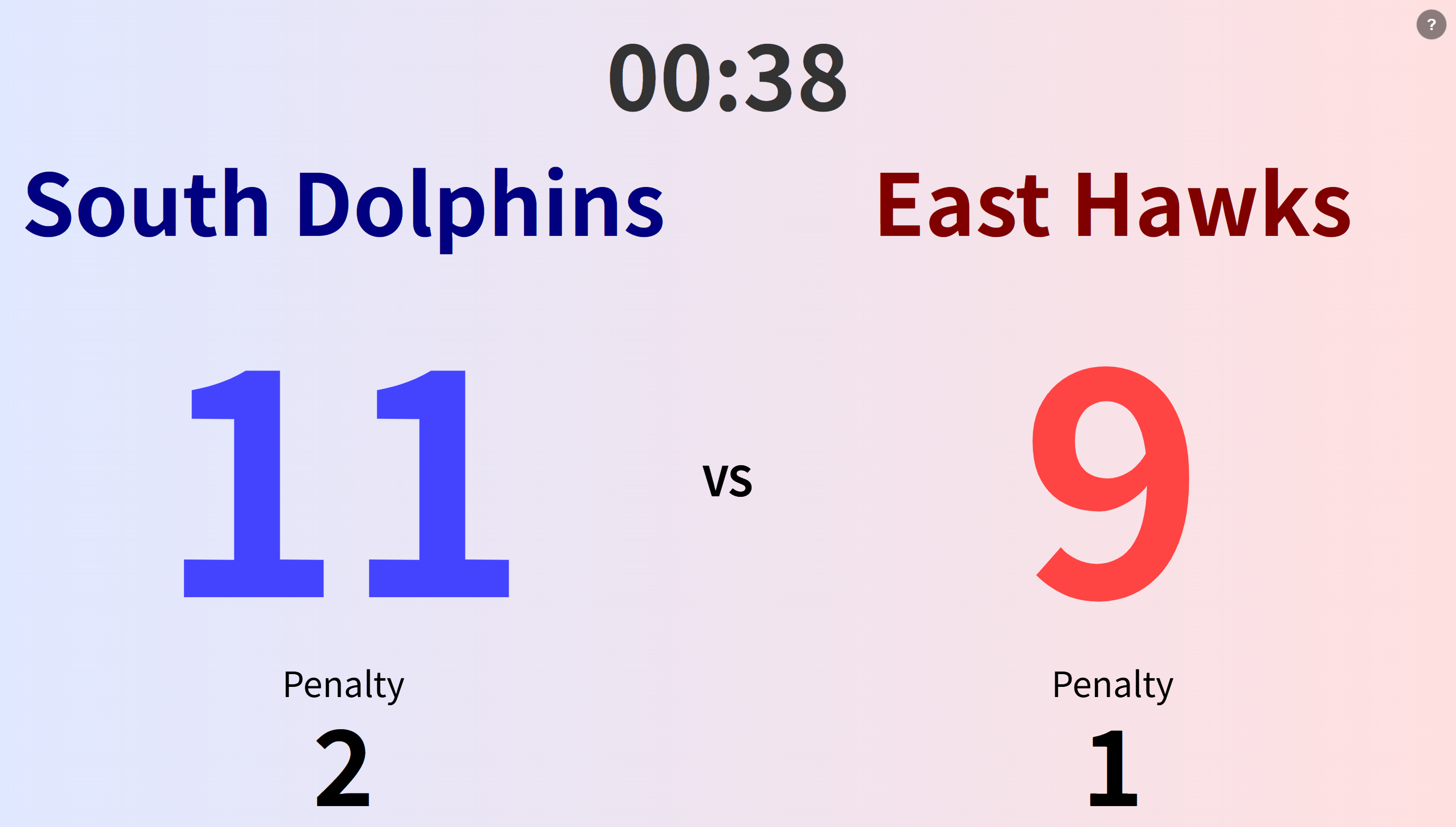
- A scoreboard app built for FAI F9A drone soccer matches and training.
- Designed to be shown on a projector or a large monitor at the venue. The text size follows the screen resolution automatically, so it works on a laptop and on a 4K display with no setup.
- 66 background music tracks to lift the atmosphere, in six categories: Kids, Teens, Popular, Beginning, Climax and International.
- Works with the keyboard and with the mouse. A penalty can be added by holding a key down, so even a home-made controller with only two keys can operate it.
- Penalties are counted as well as points.
- When the teams are not evenly matched, you can set the starting score and penalties (handicap).
The same setting lets you resume a match that was interrupted by a technical problem. - After the match, you can see how the score developed on a graph. It shows at a glance who was ahead, when, and how many times the lead changed.
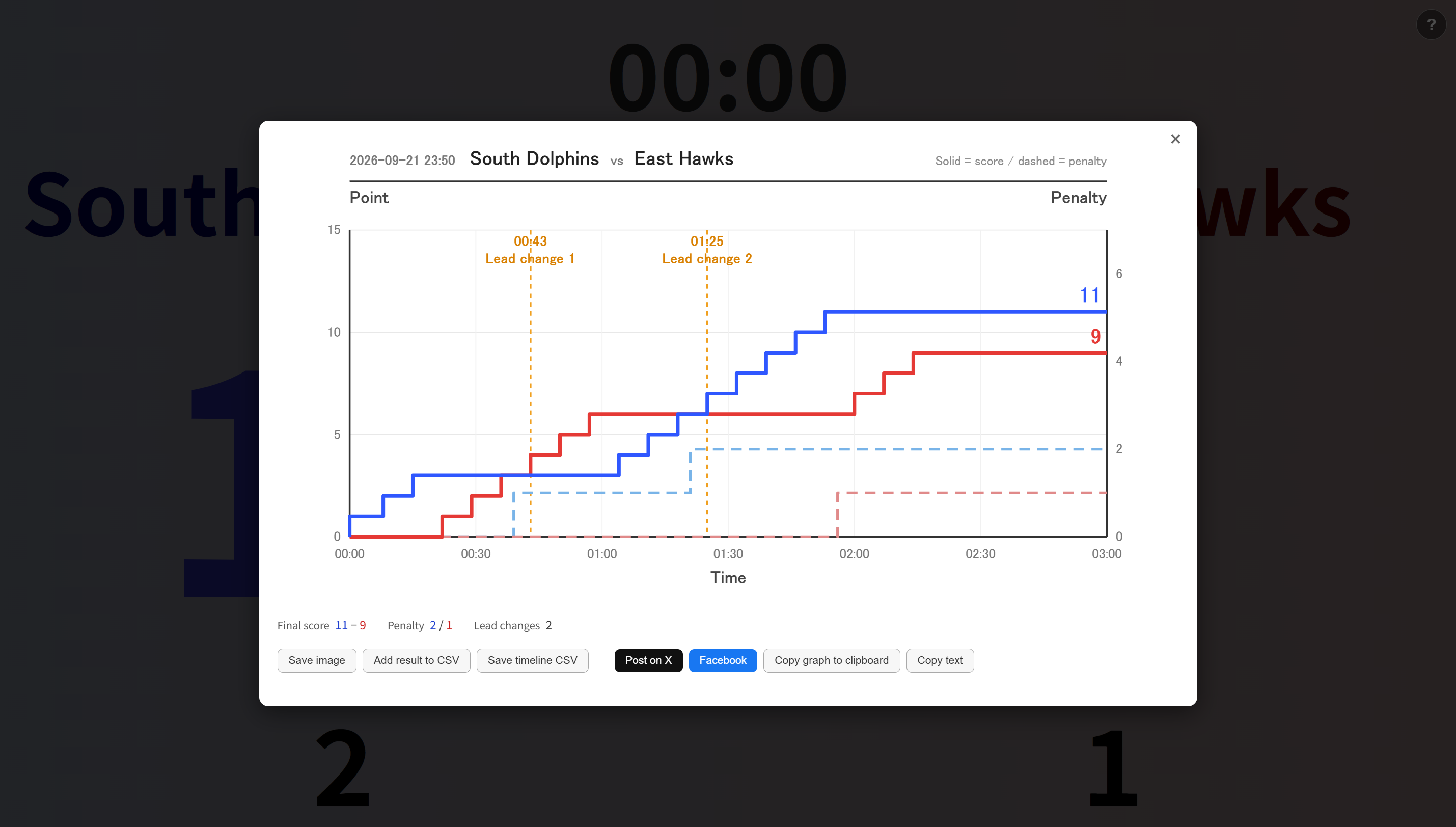
- Export the result and the second-by-second timeline as CSV files. Useful for totalling a whole tournament.
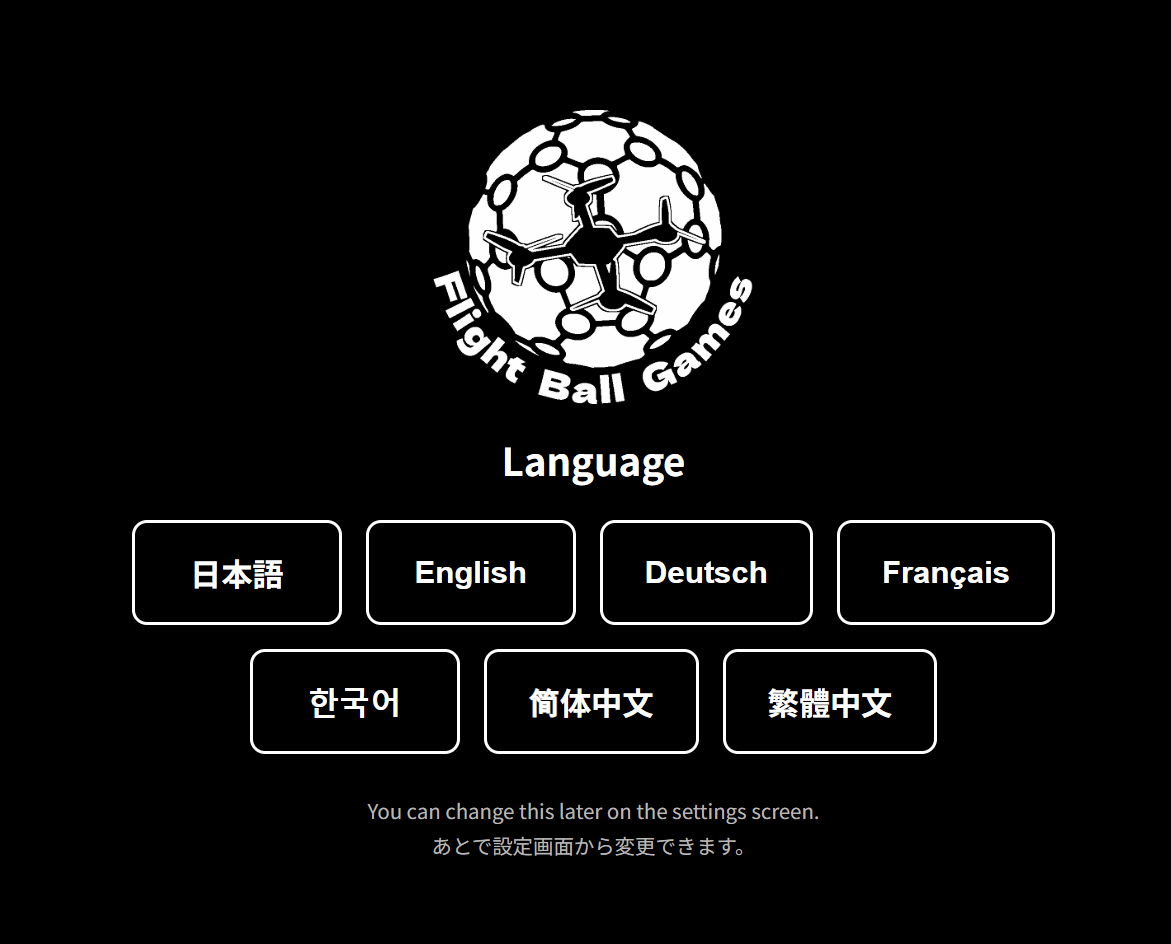
- Seven languages: Japanese, English, German, French, Korean, Simplified Chinese and Traditional Chinese.
- No advertising, and no user information is collected. No internet connection is required either.
- Software for Windows (tested on Windows 11).
How to use it
1. Before the match starts
- Choose a language (first launch only)
The language screen appears when you start the app. Your choice is remembered, so it will not appear again.
To change it later, press the button in the top-left corner of the settings screen. - The settings screen
Enter the team names and the time limit. The limit can be 1 to 999 seconds, and the "1 min", "2 min" and "3 min" buttons set it in one click.
If the teams are not evenly matched, you can also set the starting score and penalties here. - Press "Go to BGM Settings" (the blue button)
Note: if you clear the "Sound" checkbox, this screen is skipped and the match starts right away. - Choose a music category and press "Start Game" (the green button)
After the "Ready?" countdown, the match begins.
2. Controls during the match
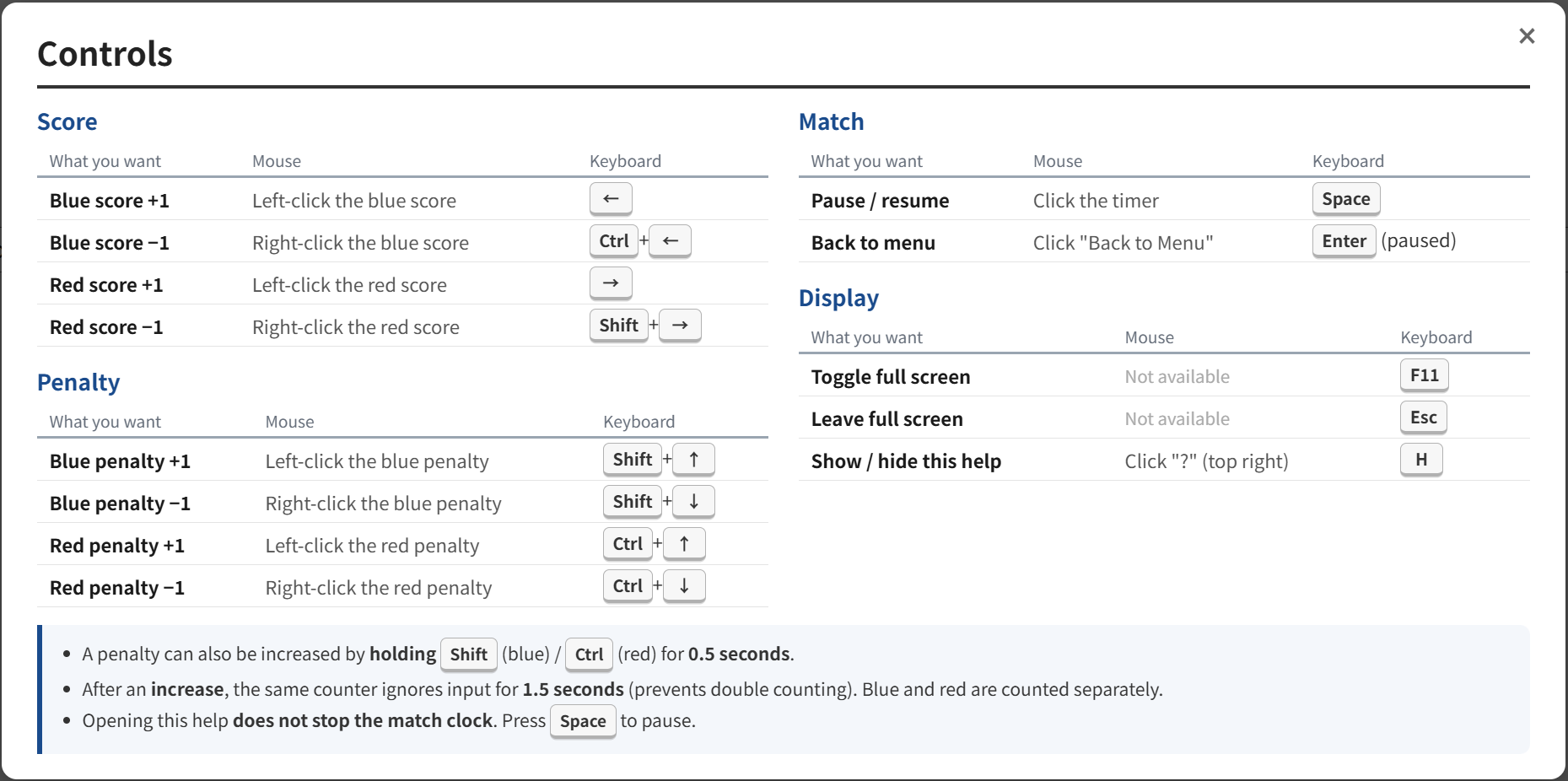
You can use the mouse or the keyboard. Either one on its own covers every action.
Score
| What you want | Mouse | Keyboard |
|---|---|---|
| Blue score +1 | Left-click the blue score | ← |
| Blue score −1 | Right-click the blue score | Ctrl + ← |
| Red score +1 | Left-click the red score | → |
| Red score −1 | Right-click the red score | Shift + → |
Penalty
| What you want | Mouse | Keyboard |
|---|---|---|
| Blue penalty +1 | Left-click the blue penalty | Shift + ↑ |
| Blue penalty −1 | Right-click the blue penalty | Shift + ↓ |
| Red penalty +1 | Left-click the red penalty | Ctrl + ↑ |
| Red penalty −1 | Right-click the red penalty | Ctrl + ↓ |
Match and display
| What you want | Mouse | Keyboard |
|---|---|---|
| Pause / resume | Click the timer | Space |
| Back to menu | Click "Back to Menu" | Enter (while paused) |
| Toggle full screen | Not available | F11 |
| Leave full screen | Not available | Esc |
| Show / hide this help | Click "?" (top right) | H |
3. Three things worth knowing
- Hold a key to add a penalty.
Hold Shift (blue) or Ctrl (red) for 0.5 seconds and the penalty count goes up by one.
This is what lets a home-made controller with only two keys reach every function. - Double counting is prevented.
After you increase a score or a penalty, the same counter ignores further input for 1.5 seconds. If your finger slips and you press twice, only one point is added.
Blue and red are counted separately, so both teams can score at the same moment without any problem. - Opening the help does not stop the match clock.
Press the Space key to pause. A whistle sounds when play resumes.
You can open the controls list at any time, even during a match, from the "?" mark in the top-right corner (or the H key).
4. After the match
- When the time runs out, "Time is up!" appears and the "Match graph" button is shown.
- Press it to see how the match developed. Each lead change is marked with a line and the time it happened.
- The buttons under the graph let you:
- Save image (PNG format)
- Add result to CSV — one row per match, so you can total a whole tournament
- Save timeline CSV — writes out the second-by-second record
- Post on X and share on Facebook
- Copy graph to clipboard — ready to paste anywhere
Note: you choose where each file is saved. Nothing is written without your say-so.